
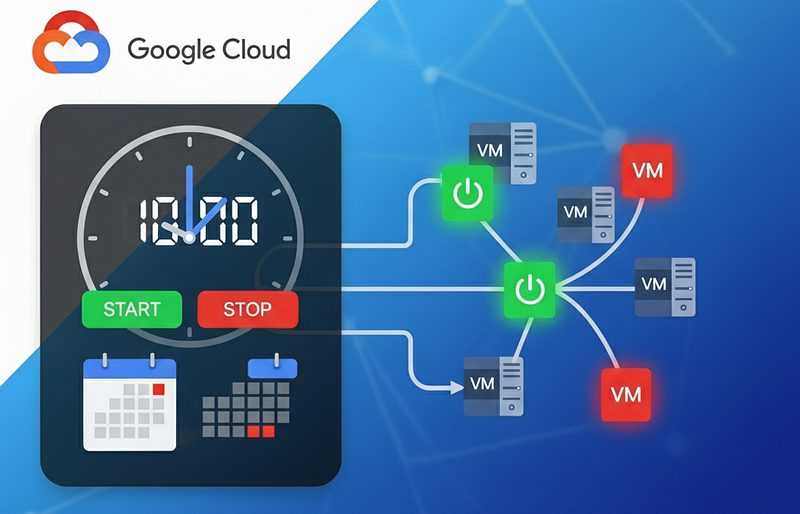
Schedule Start/Stop for Google Cloud Virtual Machines
Create a Schedule to Start and Stop your VMs/Instances as per your requirements
Running your Google Cloud Virtual Machines (VMs) 24/7 in the cloud can get expensive, especially if they’re only needed during specific times, like a standard work day. By scheduling your VMs to start and stop as needed, you can significantly optimize costs and improve resource management. Google Cloud Platform (GCP) provides a native feature called Instance Schedules that makes this automation straightforward. This blog post will walk you through the process.
What is an Instance Schedule?
An Instance Schedule is a resource policy in Google Cloud that defines a set of start and stop times for your VMs. Think of it as a set of instructions that you can attach to one or more virtual machines, telling them when to turn on and when to turn off.
Why Use Instance Schedules?
- Cost Savings: This is the most significant benefit. By only running your VMs when they’re actively used, you reduce the billed hours from 24/7 to the hours they are actually running. For a development or testing environment used only during business hours, this can lead to substantial savings.
- Resource Management: Automating the start and stop process frees you from the manual task of managing your VMs. This ensures that resources are available when your team needs them and are shut down when they don’t, improving overall efficiency.
- Predictable Workloads: Instance schedules are ideal for predictable workloads, such as a development server needed from 9:00 AM to 5:00 PM, Monday through Friday.
Step-by-Step Guide to Scheduling Your VMs
The process is simple and can be done entirely through the Google Cloud console.
Step 1: Create an Instance Schedule
- Navigate to the Compute Engine section in the Google Cloud console.
- Click on the Instance schedules tab.
- Click on CREATE SCHEDULE.
- A new pane will open. Give your schedule a Name (e.g.,
daily-business-hours-schedule). You can also add a description. - Select the Region for the schedule.
Note: The schedule must be in the same region as the VM instances you want to attach it to. - Define your start and stop times. You can use the default time and frequency fields or, for more complex schedules, click the Use CRON expression toggle.
– Default fields: Set a Start time and a Stop time (e.g., 9:00 AM and 5:00 PM) and select the frequency (e.g., Daily, Weekly).
– CRON expression: This provides granular control. For example, a start CRON expression of0 9 * * 1-5will start the VM at 9:00 AM, Monday through Friday. - Select the Time zone for your schedule.
- Click Submit to create the schedule.
Step 2: Attach the Schedule to Your VMs
Once you’ve created the schedule, you need to apply it to your VM instances.
- On the Instance schedules page, click on the schedule you just created.
- On the details page, click Add instances to schedule.
- A pane will open showing a list of your VMs in that region.
- Select the checkbox for each VM you want to attach to this schedule.
- Click Add.
Key Considerations
- Permissions: Ensure that the service account used by the instance scheduler has the necessary permissions, specifically
compute.instances.startandcompute.instances.stop. The default Compute Engine service account usually has these permissions. - 15-Minute Window: Be aware that scheduled start and stop operations can take up to 15 minutes to initiate. If a VM needs to be running by 9:00 AM, set the start time a little earlier, for example, at 8:45 AM.
- Manual Overrides: You can still manually start or stop a VM that has a schedule attached. If you stop a running VM before its scheduled stop time, it will stay stopped until the next scheduled start time.
By implementing this simple and effective strategy, you can take control of your cloud costs and ensure your resources are used efficiently.
Disclaimer: This post may contain affiliate links. If you click and buy, we may receive a small commission at no extra cost to you. Read our full disclosure here.
