
[How to] Route Your Logs, Your Way
How to series
A Quick Look at GCP Cloud Log Sinks

Obtaining log data is crucial for maintaining the health and security of your applications. But all that data needs to go somewhere useful! This is where GCP Cloud Log Sinks come in. Think of them as the traffic cops for your Google Cloud Platform (GCP) logs, directing specific log entries to the right destination.
What is a Log Sink?
A Log Sink is a configuration within Cloud Logging’s Log Router that defines which log entries to export and where to send them.
Every log entry generated by your GCP services (like Compute Engine, Cloud Run, etc.) first passes through the Log Router. The Log Router checks each log entry against all your active sinks. If a log entry matches a sink’s filter, it gets routed to that sink’s destination.
Key Components:
- Source: Logs from your GCP projects, folders, billing accounts, or organization.
- Filter: A rule (using the Logging query language) that selects specific logs to export (e.g., only “ERROR” severity logs, or logs from a specific resource).
- Destination: The Google Cloud service where the selected logs are sent.
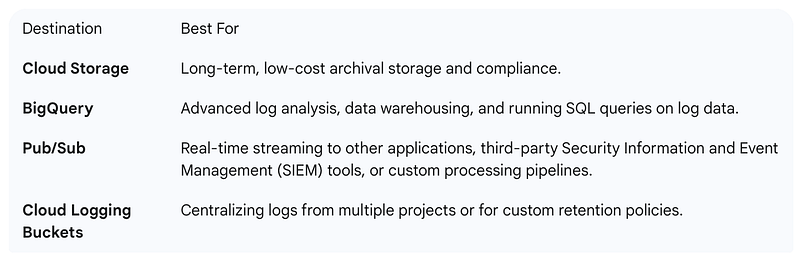
- Supported Destinations: You can route your logs to various GCP services for different purposes:
Use Cases and Scenarios
Log Sinks are essential for governance, security, and advanced analytics:
- Security & Compliance: Route all Audit Logs and high-severity “CRITICAL” logs to a centralized BigQuery dataset or a protected Cloud Storage bucket for long-term retention and security analysis.
- Real-time Alerting: Send all “ERROR” and “WARNING” logs from your production environment to a Pub/Sub topic. A service can subscribe to this topic to trigger immediate alerts (like sending a message to PagerDuty or Slack).
- Centralized Logging: If you have many projects, you can use an Aggregated Sink at the Folder or Organization level to collect logs from all child projects and send them to a single Log Bucket in a dedicated “logging” project.
Simple Steps to Set Up a Log Sink
Here is the quick process to create a sink that exports all logs with ERROR severity to a BigQuery dataset:
1. Prepare the Destination:
- Go to BigQuery and create a new Dataset (e.g., prod_errors_dataset).
2. Navigate to Logs Router:
- In the GCP Console, go to Logging => Logs Router.
3. Create the Sink:
- Click CREATE SINK.
- Sink Details: Give it a clear name (e.g., export-prod-errors). Click NEXT.
4. Select Destination:
- Select BigQuery dataset from the “Select sink service” dropdown.
- Select the destination dataset you created (e.g., prod_errors_dataset). Click NEXT.
5. Build the Filter:
- In the Choose logs to include in sink panel, define your filter. For all errors, use:
severity = ERROR
- Optional: You can also add Exclusion Filters to discard noisy logs before they are exported. Click CREATE SINK.
6. Grant Permissions:
- After creation, Cloud Logging provides a unique Writer Identity (a service account email) for the new sink.
- You must grant this writer identity the necessary role on the BigQuery destination to allow it to write data (in this case, the BigQuery Data Editor role). The console usually prompts you or provides the command.
- Once set up, any new log entry with severity = ERROR will be instantly routed to your BigQuery table for querying and analysis.
Want to know more on which Destination to select?
Read more…
https://rajsm139.medium.com/how-to-choose-the-right-destination-for-your-gcp-cloud-logs-1ee1821af871
