
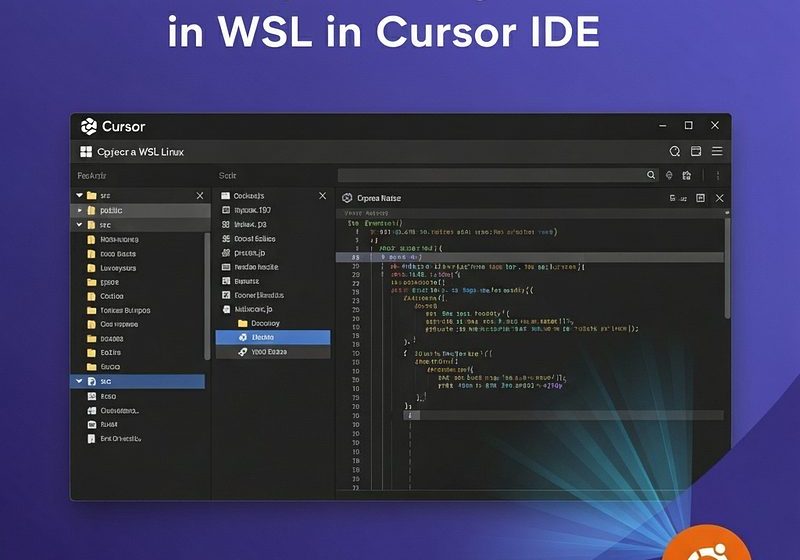
Open a Project cloned in WSL in Cursor IDE
Bridge the gap between Windows and Linux for a powerful, integrated workflow.
If you’re reading this blog, then you’ve hit on a common and crucial topic for modern developers: bridging the gap between a powerful Windows IDE and the robust Linux environment provided by Windows Subsystems for Linux. It’s a workflow that combines the best of both worlds, but getting the initial setup right can be a bit tricky.
This guide will walk you through the process of opening a WSL project in Cursor, the AI-powered code editor, explaining the “why” behind the steps and providing a clear, reliable method to get you up and running smoothly.
Why Use WSL with Cursor?
Many developers choose to work within the Windows Subsystem for Linux for their projects. It offers a native Linux environment, which is often essential for tasks like:
- Running Linux-specific tools and commands: Packages like
aptornpmoften behave more predictably in a native Linux environment. - Ensuring production parity: If your application is deployed on a Linux server, developing within Windows Subsystems for Linux helps ensure that your code runs in an environment very similar to its final destination, reducing “it works on my machine” bugs.
- Working with a different shell: Using a shell like Bash or Zsh offers a powerful and flexible command-line experience that many developers prefer.
Cursor, on the other hand, is a Windows-based application. It’s built on the VS Code framework but is enhanced with powerful AI features. The key to making this setup work is to have Cursor act as a “client” that connects to a “server” running inside your Windows Subsystems for Linux instance. This is what’s known as remote development.
The Seamless Way: The cursor . Command
The absolute best and most reliable way to open a WSL project in Cursor is to initiate the connection from within your WSL terminal. This is a one-line command that handles all the complex setup for you.
Step 1: Open Your WSL Terminal
First, open your WSL distribution. You can do this by searching for it in the Windows Start Menu (e.g., “Ubuntu”) or by typing wsl in PowerShell or Command Prompt.
Step 2: Navigate to Your Project Directory
Use the cd command to change to the directory of your project. If you just cloned a repository, it’s likely in your home directory.
cd ~/my-awesome-project
Step 3: Launch Cursor
Now, simply type the cursor command followed by a period. The period (.) is a shortcut that means “the current directory.”
cursor .
When you run this command for the first time, you may see a message in your terminal indicating that Cursor is “Setting up WSL.” This is Cursor automatically installing a lightweight server inside your WSL instance to manage the remote connection. It will install the necessary components, and after a few moments, your project will open in a new Cursor window on your Windows machine.
You can confirm the connection is active by looking at the bottom-left corner of the Cursor window. It should show a status like “WSL: Ubuntu”, confirming that your IDE is now operating directly on the WSL file system.
Troubleshooting Common Issues
While this method is usually foolproof, you might encounter a couple of common issues.
“Command not found: cursor”
If your WSL terminal doesn’t recognize the cursor command, it means the path to the Cursor executable on your Windows machine hasn’t been added to your WSL’s PATH environment variable.
The Fix: You can either call the executable directly or add its path to your shell configuration file (~/.bashrc or ~/.zshrc). The path is usually:
/mnt/c/Users/<Your-Windows-Username>/AppData/Local/Programs/cursor/resources/app/bin/cursor
To call it directly, replace <Your-Windows-Username> with your actual Windows username and run the full command:
/mnt/c/Users/<Your-Windows-Username>/AppData/Local/Programs/cursor/resources/app/bin/cursor .
“Couldn’t find extension Remote — WSL”
Unlike VS Code, where the “Remote — WSL” extension is a standalone item, Cursor’s WSL integration is often handled automatically when you run the cursor . command. The command-line utility is designed to handle this dependency for you. If you get an error that suggests a missing extension, running cursor . is still the best first step. It’s the action that tells Cursor to install the necessary remote components.
If you’re still having trouble, check the Cursor community forums. It’s possible that a specific version of the official VS Code remote extensions may conflict, and you may need to ensure you’re using the correct version for Cursor. However, for most users, simply using the cursor . command is all that’s needed.
A Final Word of Advice
Never try to open your WSL project by navigating to the Windows file system path, such as cursor . command and the remote development model are the officially supported and highly recommended ways to ensure your workflow is fast, reliable, and secure.
By following these steps, you’ll be able to enjoy the best of both worlds: the familiar and powerful interface of Cursor on Windows, with the speed and flexibility of a native Linux development environment.
Disclaimer: This post may contain affiliate links. If you click and buy, we may receive a small commission at no extra cost to you. Read our full disclosure here.