
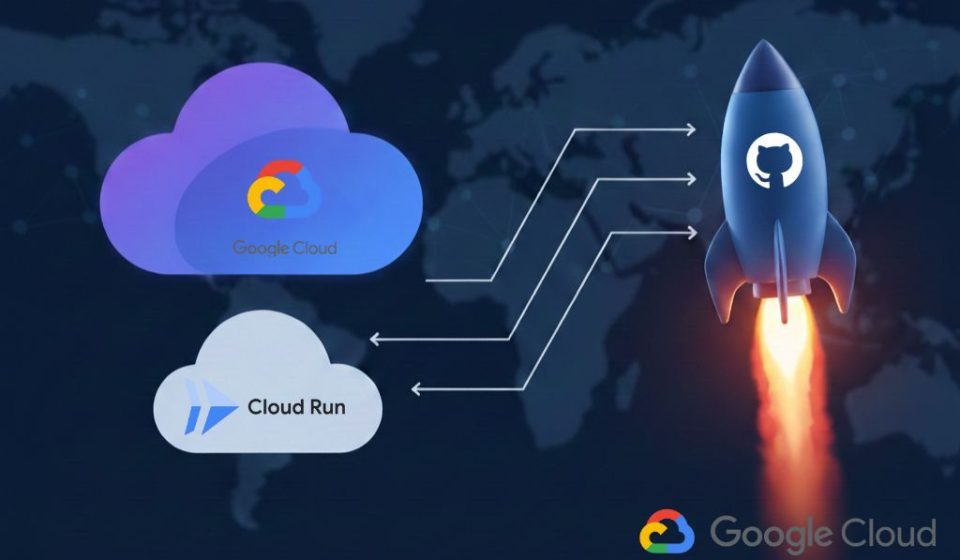
Using GitHub Actions for Google Cloud Run
Zero-Stress Deployments
Table of Contents
Let’s be honest: nothing kills the buzz of finishing a cool feature quite like a manual deployment. If you’re still dragging files into consoles or running manual shell scripts, it’s time for an upgrade.
Today, we’re looking at how to automate your workflow using Google Cloud Run. By combining it with GitHub Actions, you can move from “code complete” to “live in production” without ever leaving your terminal.
Why Google Cloud Run is a Game Changer
Before we dive into the “how,” let’s talk about why Google Cloud Run is the go-to choice for modern developers.
- Serverless Simplicity: You don’t have to manage servers. You give it a container, and it handles the rest.
- Cost-Efficiency: It scales to zero. If nobody is using your app, you aren’t paying for it.
- Portability: You aren’t locked in. If it runs in a container, it runs here.
Step 1: Prepare Your Container
Google Cloud Run thrives on containers. Whether you’re using Node.js, Python, or Go, you need a Dockerfile. Here is a simple example for a standard web app:
# Use a lightweight base image
FROM node:20-slim
WORKDIR /app
COPY package*.json ./
RUN npm install --only=production
COPY . .
# Ensure the app listens on the port Cloud Run expects
EXPOSE 8080
CMD ["node", "index.js"]
Step 2: Set Up Your Permissions
To let GitHub talk to Google Cloud Run, you need to set up a Service Account in your Google Cloud Console. You’ll need to grant it these specific roles:
- Cloud Run Developer
- Storage Admin (to host your container images)
- Service Account User
Pro Tip: Download the JSON key for this account and save it as GCP_SA_KEY in your GitHub Repository Secrets. This keeps your credentials safe and out of your public code.
Step 3: Automate with GitHub Actions
Now for the magic. We want Google Cloud Run to update every time we push to the main branch, for example. Create a file at .github/workflows/deploy.yml:
name: Deploy to Cloud Run
on:
  push:
    branches: [ main ]
jobs:
  deploy:
    runs-on: ubuntu-latest
    steps:
      - name: Checkout code
        uses: actions/checkout@v4
      - name: Authenticate with GCP
        uses: google-github-actions/auth@v2
        with:
          credentials_json: ${{ secrets.GCP_SA_KEY }}
      - name: Build and Push to Container Registry
        run: |
          gcloud auth configure-docker
          docker build -t gcr.io/${{ secrets.GCP_PROJECT_ID }}/app-name .
          docker push gcr.io/${{ secrets.GCP_PROJECT_ID }}/app-name
      - name: Deploy to Google Cloud Run
        uses: google-github-actions/deploy-cloudrun@v2
        with:
          service: app-name
          image: gcr.io/${{ secrets.GCP_PROJECT_ID }}/app-name
          region: us-central1
And, its a wrap…
Just like that, you’ve turned your manual chore into a hands-free pipeline. Now, every time you push code, GitHub Actions kicks in, builds your image, and hands it off to Google Cloud Run.
The result? Faster shipping, fewer manual errors, and more time to actually write code.
Automation isn’t just about saving time; it’s about peace of mind. Knowing that your latest code is being built, containerized, and scaled by a world-class infrastructure while you grab a coffee is a pretty great feeling. So, go ahead—push that next commit and let Google Cloud Run and GitHub Actions do the heavy lifting for you.
Disclaimer: This post may contain affiliate links. If you click and buy, we may receive a small commission at no extra cost to you. Read our full disclosure here.